
If you’ve ever printed multiple copies of a multi-page document, you might have seen the “Collate” option in your printer settings. But what does it mean, and why should you use it? Understanding this feature can save you time, reduce paper waste, and help you stay organized when printing large documents. In this guide, we’ll explain what the collate option is, how it works, and why it’s important for everyday printing tasks.
What Does Collate Mean When Printing?
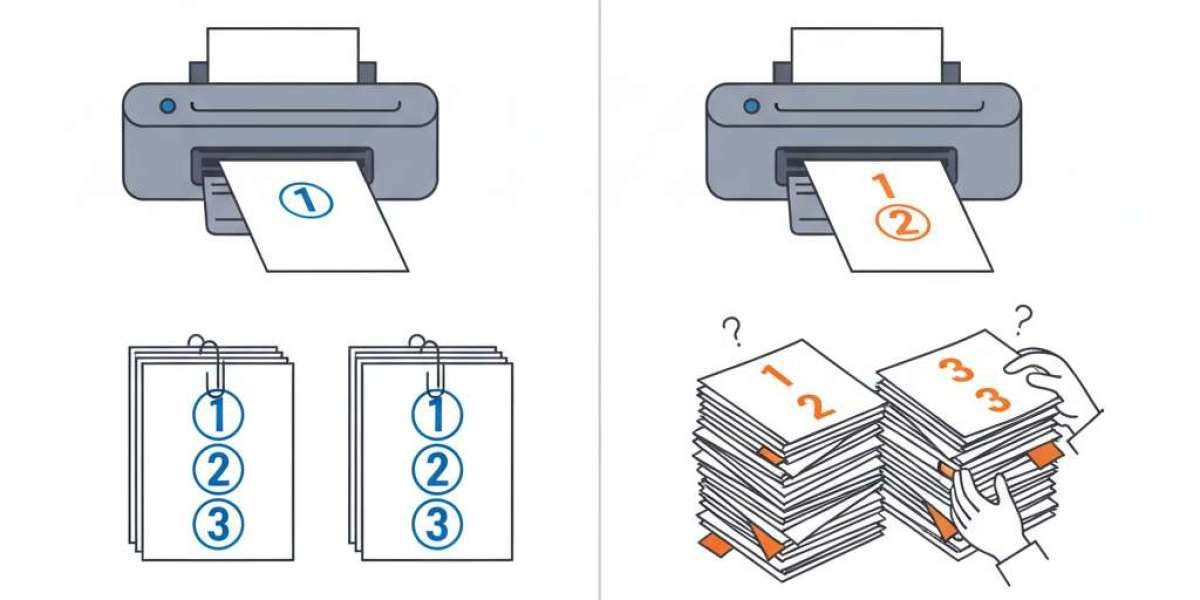
What does collate mean when printing. The collate option determines the order in which your printer outputs multiple copies of a multi-page document.
Collated printing: Prints full sets of documents in order (e.g., pages 1–5, 1–5, 1–5).
Uncollated printing: Prints all copies of each page together (e.g., pages 1, 1, 1, then pages 2, 2, 2).
Why Collate Is Useful
Prevents manual sorting of pages
Saves time when printing large batches
Reduces the chance of missing or misordered pages
How the Collate Option Works
Here’s a simple example of how collated printing works:
Example: You want 3 copies of a 4-page report.
| Printing Option | Page Order Output |
|---|---|
| Collated | 1,2,3,4 → 1,2,3,4 → 1,2,3,4 |
| Uncollated | 1,1,1 → 2,2,2 → 3,3,3 → 4,4,4 |
Step-by-step to use collate:
Open the print dialog on your computer.
Select your printer.
Look for the “Collate” checkbox in print settings.
Check it for collated printing or uncheck for uncollated.
Click Print.
Collated vs Uncollated Printing: How and Why to Choose
Choosing the right option depends on your printing needs:
When to Use Collated Printing
Printing multiple copies of multi-page documents
Preparing handouts or reports for meetings
The collate meaning reducing manual sorting of pages
When to Use Uncollated Printing
Printing large batches of single-page documents
Needing all copies of one page before the next
Saving printer memory in some high-volume tasks
Tips for Efficient Printing With Collate
Check page numbers: Ensure all pages are correctly numbered before printing.
Preview first: Use print preview to avoid misprints.
Printer memory: Large collated jobs may require more memory—split into smaller batches if needed.
Paper size: Match your paper settings to the document size for consistent output.
Frequently Asked Questions (FAQ)
How does the collate option work in printers?
Collate prints complete sets of documents in order, reducing the need to manually sort pages after printing.
Why should I use collated printing?
The collate meaning printer ensures your documents are in order,saves time and is especially helpful for multi-page reports or handouts.
Can I collate both single-page and multi-page documents?
Collate only affects multi-page documents. Single-page prints will look the same with or without collate.
How do I enable collate printing?
Check the “Collate” checkbox in your printer’s settings before printing. On most printers, it’s near the copy number selection.
Does collate increase printing time?
Collated printing can be slightly slower, but it saves significant time in sorting and organizing pages afterward.
Key Takeaways
The collate option in printing is simple but powerful. It ensures your multi-page documents come out in the correct order, reducing errors and saving time. Always check your print settings, especially when producing multiple copies, to make your workflow more efficient.
Try it next time you print a report or handout and see how much easier organizing pages becomes!